Files, Sorting & Records — The 100-Student Problem
This whole lesson is one problem. Every new thing you learn here shows up because the problem refuses to be solved without it. Cả bài học này chỉ có một bài toán. Mỗi thứ mới bạn học đều xuất hiện vì bài toán không thể giải nếu thiếu nó.
🛠️ Section 0 — Set Up Your Computer
Do this once. Follow the numbered steps in order. Làm một lần. Làm theo các bước đánh số, đúng thứ tự.
0.1 — Install Git Bash
Git Bash is the window where you type commands. Git Bash là cửa sổ để gõ lệnh.
- Go to git-scm.com/install/windows and click "Click here to download". Vào git-scm.com/install/windows, bấm "Click here to download".
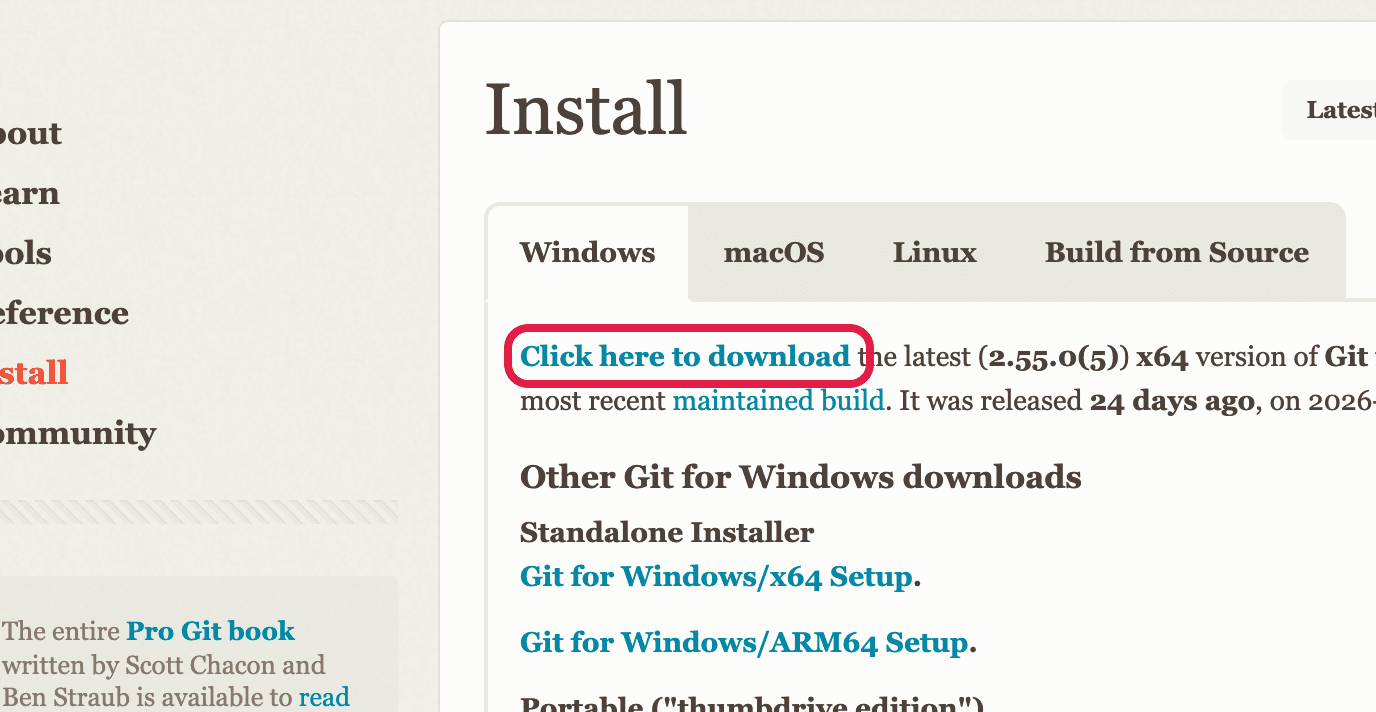
Click the link in the red box. / Bấm liên kết trong khung đỏ. - Open File Explorer → Downloads → double-click the file. Mở File Explorer → Downloads → bấm đúp vào tệp.
- If Windows asks "Do you want to allow this app to make changes?", click Yes. Nếu Windows hỏi, bấm Yes.
- Click Next on every screen, then Install, then Finish. Bấm Next ở mọi màn hình, rồi Install, rồi Finish.
- To open Git Bash: Start → type Git Bash → click it. Để mở Git Bash: Start → gõ Git Bash → bấm vào.

Git Bash. The $ means it is waiting for you to type. / Dấu $ nghĩa là nó đang chờ bạn gõ. (Image: gitforwindows.org)
0.2 — Install Python
- Go to python.org/downloads/windows. Vào python.org/downloads/windows.
- Find the first Python 3.14 and click "Windows installer (64-bit)" — not "Python install manager". Tìm Python 3.14 đầu tiên, bấm "Windows installer (64-bit)" — không phải "Python install manager".
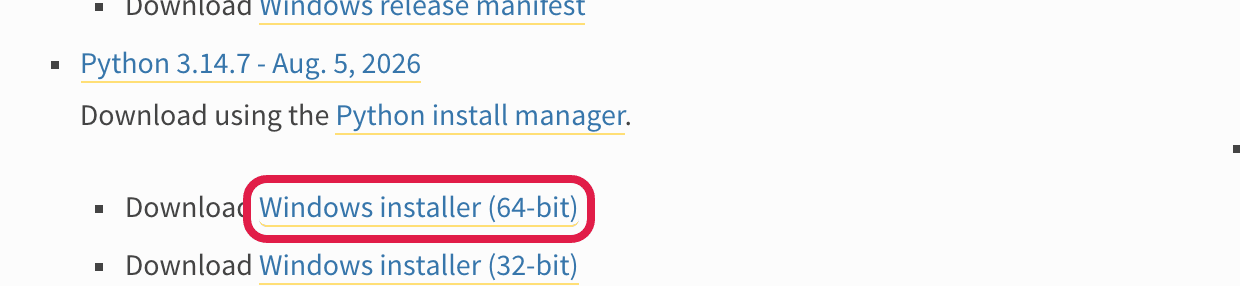
Click the link in the red box. / Bấm liên kết trong khung đỏ. - Open File Explorer → Downloads → double-click the file. Mở File Explorer → Downloads → bấm đúp vào tệp.
- If Windows asks "Do you want to allow this app to make changes?", click Yes. Nếu Windows hỏi, bấm Yes.
- Tick "Add python.exe to PATH" at the bottom. Do not skip this. Tích ô "Add python.exe to PATH" ở dưới cùng. Không được bỏ qua.
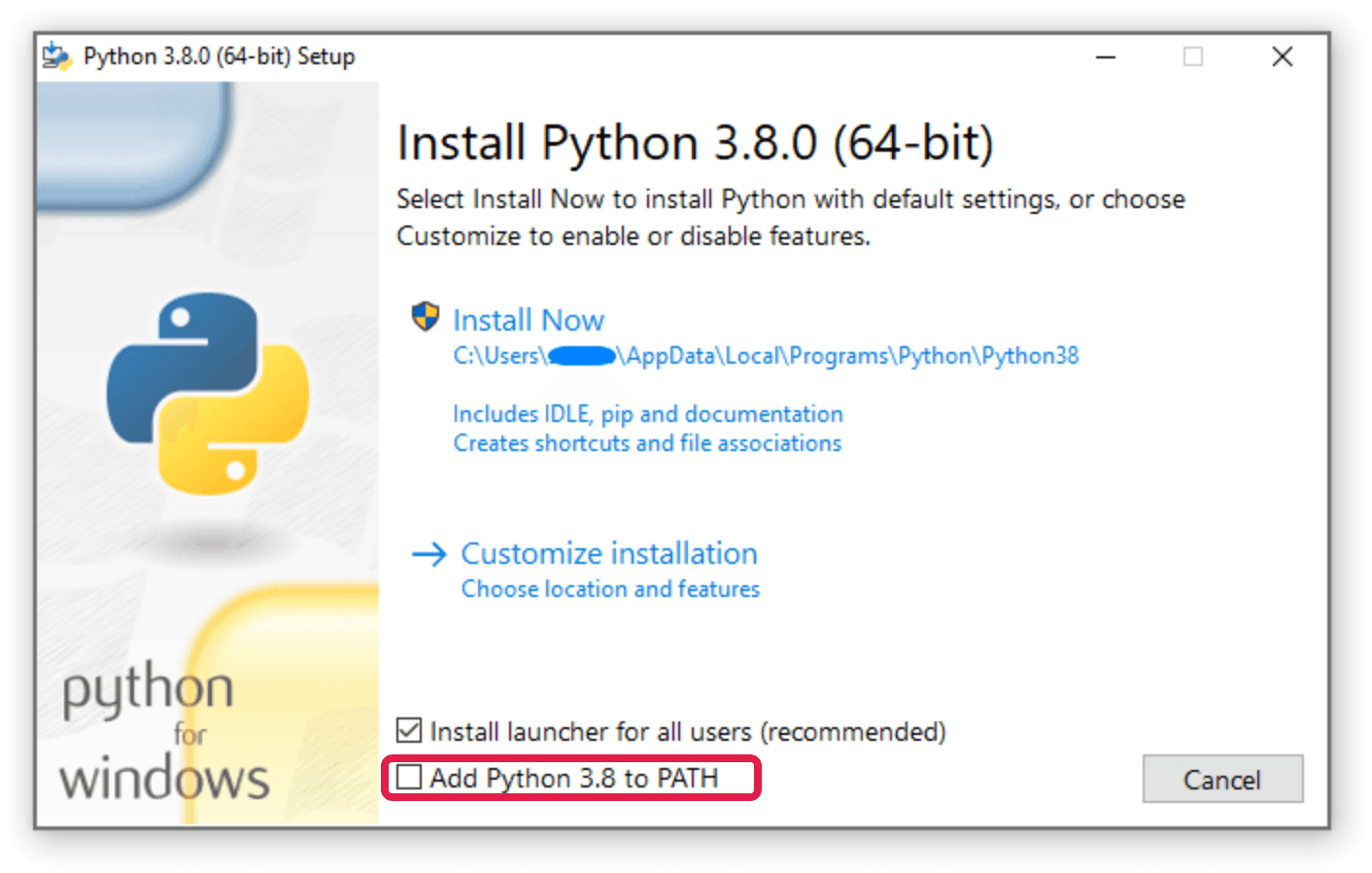
Tick the box in the red frame. Your version number will be newer. / Tích ô trong khung đỏ. Số phiên bản của bạn sẽ mới hơn. (Image: docs.python.org) - Click Install Now, then Close. Bấm Install Now, rồi Close.
Forgot the box? / Quên tích ô?
Tell your teacher before you go on. Hãy báo giáo viên trước khi làm tiếp.
0.3 — Install VS Code
VS Code is where you write your code. VS Code là nơi bạn viết code.
- Go to code.visualstudio.com/download and click the Windows button. Vào code.visualstudio.com/download, bấm nút Windows.
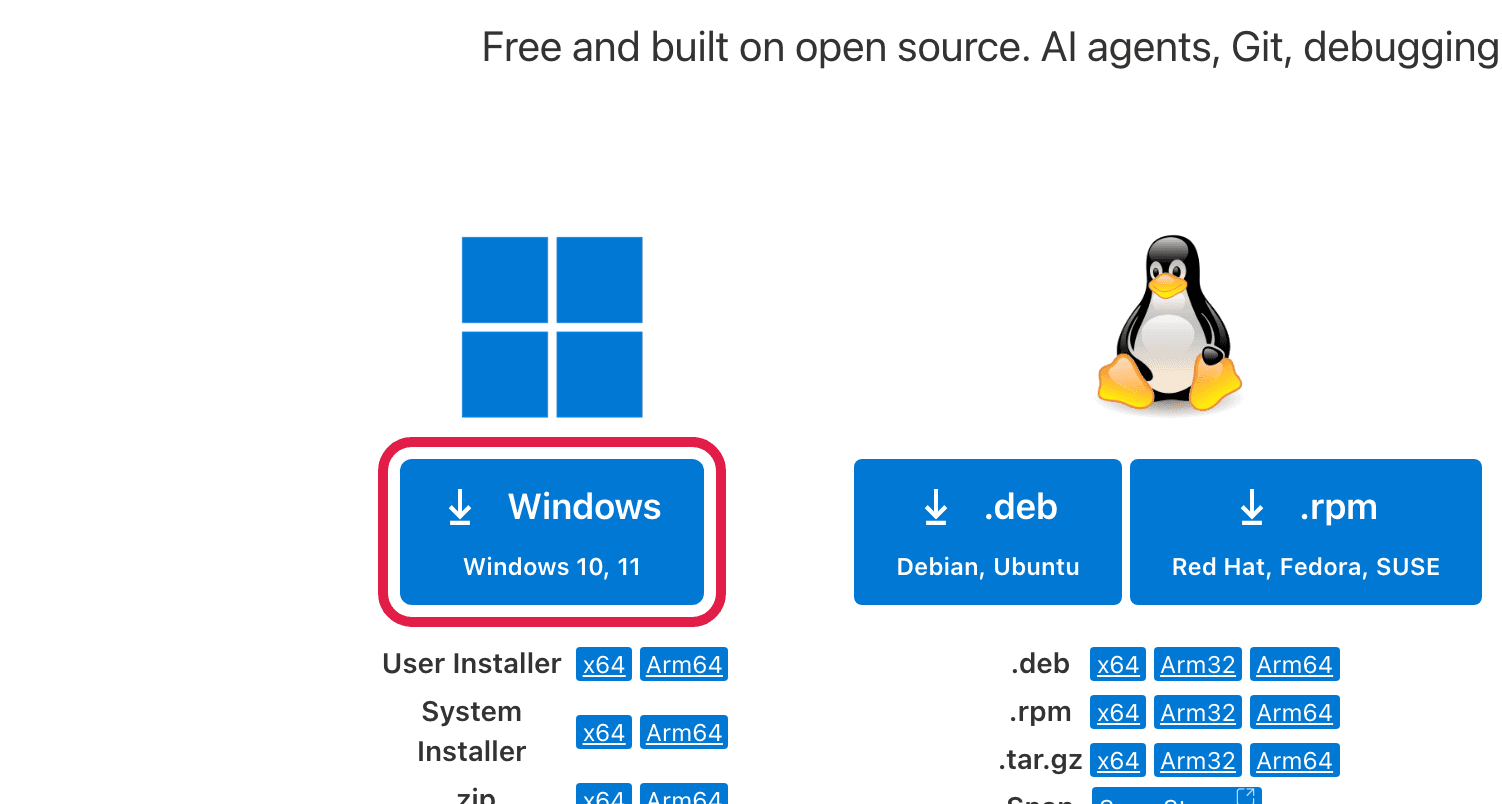
Click the button in the red box. / Bấm nút trong khung đỏ. - Open File Explorer → Downloads → double-click the file. Mở File Explorer → Downloads → bấm đúp vào tệp.
- Click "I accept the agreement", then Next. Bấm "I accept the agreement", rồi Next.
- On "Select Additional Tasks", tick both "Add 'Open with Code'" boxes. Ở màn hình "Select Additional Tasks", tích cả hai ô "Add 'Open with Code'".
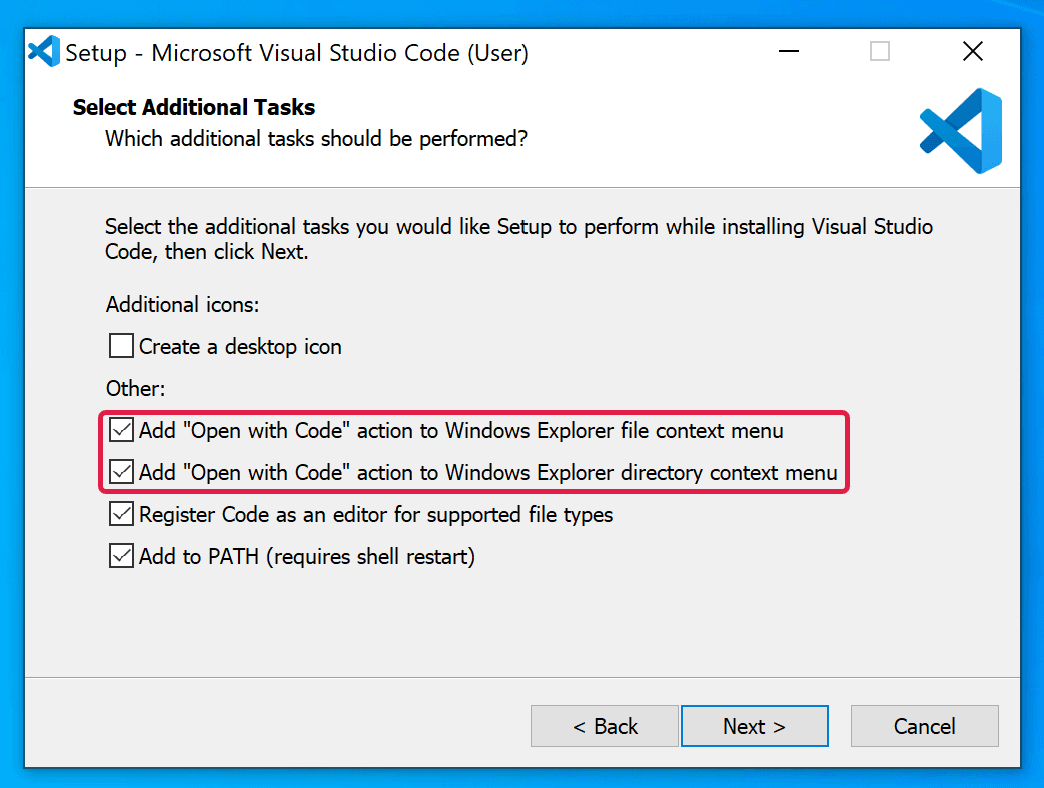
Tick both boxes in the red frame — they start empty. / Tích cả hai ô trong khung đỏ — lúc đầu còn trống. (Image: MIT RACECAR course, MIT License) - Click Next, Install, Finish. Bấm Next, Install, Finish.
0.4 — Make a folder and open it in VS Code
- Open File Explorer → This PC → double-click the (D:) disk. (No (D:) disk? Tell your teacher.) Mở File Explorer → This PC → bấm đúp vào ổ (D:). (Không có ổ D:? Báo giáo viên.)
- Right-click an empty space → New → Folder. Name it with your name — no spaces, no accents. Example: nguyenvanan. Bấm chuột phải vào chỗ trống → New → Folder. Đặt tên bằng tên của bạn — không dấu cách, không dấu tiếng Việt. Ví dụ: nguyenvanan.
- Right-click your folder → Open with Code. (No option? Click "Show more options" first.) Bấm chuột phải vào thư mục của bạn → Open with Code. (Không thấy? Bấm "Show more options" trước.)
- VS Code asks if you trust the folder. Click "Yes, I trust the authors". VS Code hỏi bạn có tin thư mục không. Bấm "Yes, I trust the authors".
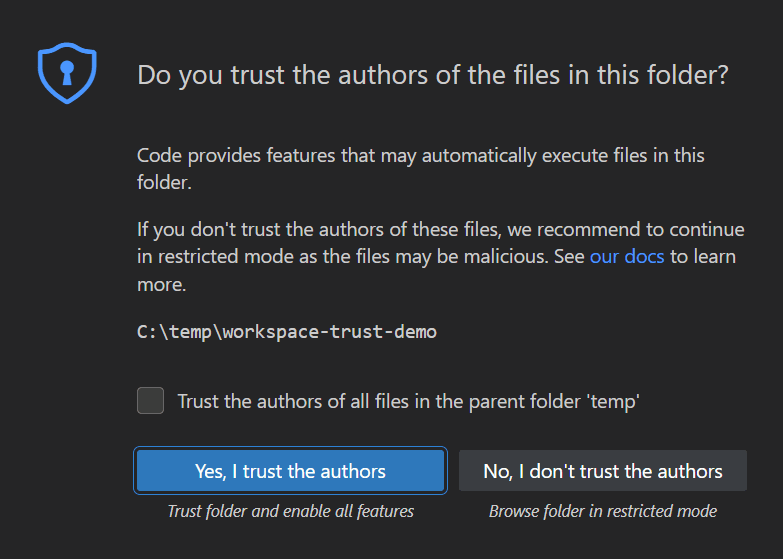
Click the blue button. / Bấm nút màu xanh. (Image: VS Code documentation) - In the left panel of VS Code, right-click an empty space → New Folder.... Type
helloworldand press Enter. All your files for this lesson go in this folder. Ở khung bên trái VS Code, bấm chuột phải vào chỗ trống → New Folder... Gõ helloworld rồi nhấn Enter. Mọi tệp của bài này đều để trong thư mục này.
0.5 — Create your first file
- In the left panel of VS Code, click the helloworld folder. Ở khung bên trái VS Code, bấm vào thư mục helloworld.
- Click the New File button (a page with +). Bấm nút New File (tờ giấy có dấu +).
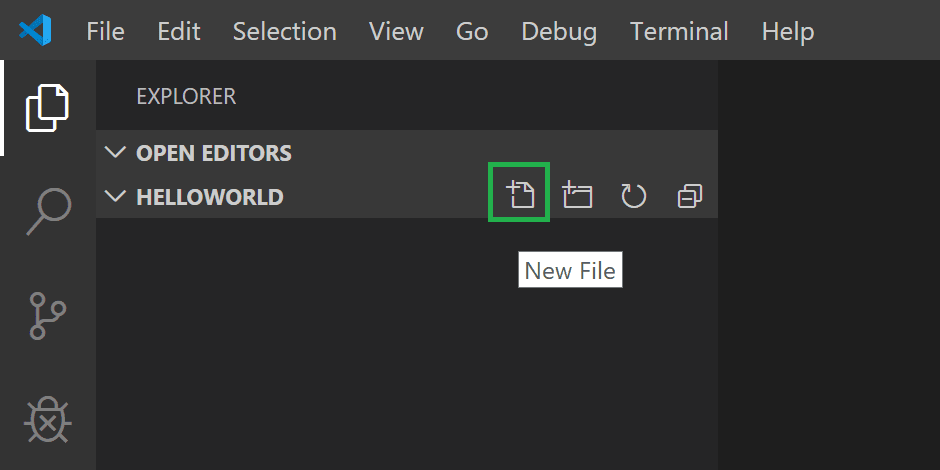
The New File button, in the green box. Yours shows your name on top. / Nút New File, trong khung xanh lá. Của bạn ghi tên bạn ở trên cùng. (Image: VS Code documentation) - Type
hello.pyand press Enter. It appears under helloworld. Gõ hello.py rồi nhấn Enter. Tệp hiện ra bên dưới helloworld. - Type this into the file: Gõ nội dung này vào tệp:python
print("Hello") - Press Ctrl+S to save. Nhấn Ctrl+S để lưu.
Always save / Luôn lưu tệp
Press Ctrl+S every time you change a file. Nhấn Ctrl+S mỗi lần bạn sửa tệp.
0.6 — Open Git Bash in your folder
- Close any Git Bash window that is already open. Đóng mọi cửa sổ Git Bash đang mở.
- In File Explorer, open (D:) → your folder → helloworld. Trong File Explorer, mở (D:) → thư mục của bạn → helloworld.
- Right-click an empty space → Open Git Bash here. (No option? Click "Show more options" first.) Bấm chuột phải vào chỗ trống → Open Git Bash here. (Không thấy? Bấm "Show more options" trước.)
- Type
lsand press Enter. Gõ ls rồi nhấn Enter.bashls - You should see
hello.py. Bạn sẽ thấy hello.py.
0.7 — Run your first file
- Type this and press Enter: Gõ dòng này rồi nhấn Enter:bash
python hello.py - You should see
Hello. Your computer is ready. Bạn sẽ thấy Hello. Máy tính đã sẵn sàng.
If something goes wrong / Nếu có lỗi
command not foundorPython was not found→ tell your teacher. command not found hoặc Python was not found → báo giáo viên.No such file or directory→hello.pyis not saved in helloworld. Press Ctrl+S in VS Code. No such file or directory → hello.py chưa được lưu trong helloworld. Nhấn Ctrl+S trong VS Code.
🎯 Section 1 — The Problem
A class has 100 students. Each one has a score. Your job: print the scores from lowest to highest. Một lớp có 100 học sinh, mỗi bạn có một điểm. Nhiệm vụ: in điểm từ thấp đến cao.
The scores look like this — one number per line, 100 lines in total: Điểm có dạng như sau — mỗi dòng một số, tổng cộng 100 dòng:
87
92
78
95
85
...
Try it first / Hãy thử trước
Start writing the program now, the way you already know: ask the user for each score with input(). Keep going until you feel the problem. Hãy bắt đầu viết chương trình theo cách bạn đã biết: dùng input() để nhập từng điểm. Cứ làm cho tới khi bạn thấy vấn đề.
You found it: typing 100 numbers every single time you test is impossible. Before we can sort anything, we need the data to come from somewhere else. Bạn đã thấy: gõ 100 số mỗi lần chạy thử là không thể. Trước khi sắp xếp, dữ liệu phải đến từ nơi khác.
📂 Section 2 — Read the Scores From a File
The 100 numbers are already in a text file called scores.txt. Your program can read them from the file, so you never type them again. 100 số đã có sẵn trong tệp văn bản scores.txt. Chương trình của bạn đọc chúng từ tệp, nên bạn không phải gõ lại nữa.
Download the data / Tải tệp dữ liệu
scores.txt — 100 scores, one per line. Click the link: the file goes into your Downloads folder. Open Downloads in File Explorer and drag the file into your helloworld folder, next to your program. 100 điểm, mỗi dòng một số. Bấm vào liên kết: tệp sẽ nằm trong thư mục Downloads. Mở Downloads trong File Explorer rồi kéo tệp vào thư mục helloworld, cạnh chương trình của bạn.
pythonscores = []

with open("scores.txt") as f:
    for line in f:
        scores.append(int(line))

for s in scores:
    print(s)
open("scores.txt")opens the file. mở tệp.withlets you use the file in the indented lines below it. When those lines finish, Python closes the file (stops using it) for you. with cho bạn dùng tệp trong các dòng thụt vào bên dưới nó. Khi các dòng đó chạy xong, Python tự đóng tệp (thôi dùng tệp) giúp bạn.for line in fgives you one line at a time, until the file runs out. lấy từng dòng một, cho tới khi hết tệp.int(line)turns the text"87"into the number87. đổi chữ "87" thành số 87.
Build one piece, then test it / Làm từng phần rồi kiểm tra
This program does not solve the problem — it does not sort anything. But it runs, and you can check it prints all 100 scores. Getting one piece right before adding the next is how you avoid hunting for a mistake in a big broken program. Chương trình này chưa giải bài toán — nó chưa sắp xếp gì cả. Nhưng nó chạy được, và bạn kiểm tra được là nó in đủ 100 điểm. Làm đúng từng phần trước khi thêm phần sau giúp bạn không phải mò lỗi trong một chương trình lớn.
🔢 Section 3 — Sort Them
The scores are in a list. Python can put a list in order with one line. Điểm đang nằm trong một list. Python sắp xếp list chỉ bằng một dòng.
pythonscores = []

with open("scores.txt") as f:
    for line in f:
        scores.append(int(line))

scores.sort()

for s in scores:
    print(s)
scores.sort() rearranges the list itself, from smallest to largest. sort() sắp xếp lại chính list đó, từ nhỏ đến lớn.
💾 Section 4 — Write the Answer to a File
Printing 100 lines to the screen scrolls away. Write the answer into out.txt instead, so you can open it and check it. When you run this program, it shows nothing on the screen — that is normal. It creates out.txt in your helloworld folder; open it in VS Code to see the answer. In 100 dòng ra màn hình sẽ bị trôi mất. Hãy ghi kết quả vào tệp out.txt để mở ra kiểm tra. Khi chạy, chương trình không hiện gì trên màn hình — như vậy là bình thường. Nó tạo tệp out.txt trong thư mục helloworld; mở tệp đó trong VS Code để xem kết quả.
pythonscores = []

with open("scores.txt") as f:
    for line in f:
        scores.append(int(line))

scores.sort()

with open("out.txt", "w") as f:
    for s in scores:
        f.write(str(s) + "\n")
- The
"w"means write. Without it, Python only reads. "w" nghĩa là ghi. Không có nó, Python chỉ đọc. f.write()only accepts text, sostr(s)turns the number back into text. write() chỉ nhận chữ, nên phải đổi số thành chữ."\n"is a new line. Without it everything lands on one line. là ký tự xuống dòng. Thiếu nó thì mọi thứ dính vào một dòng.
You solved it / Bạn đã giải xong
This is a complete, correct program. It reads 100 scores and writes them in order. Đây là một chương trình hoàn chỉnh và đúng. Nó đọc 100 điểm và ghi ra theo thứ tự.
🔄 Section 5 — New Requirement: Best Student at the Top
The teacher changes her mind. She wants the scores from highest to lowest now. Cô giáo đổi ý. Bây giờ cô muốn điểm từ cao xuống thấp.
With nothing inside its brackets, sort() always puts the smallest first. To get a different order, you have to tell it what to sort by — and you tell it with a function. Khi không có gì trong ngoặc, sort() luôn xếp nhỏ trước. Muốn thứ tự khác, bạn phải nói cho nó biết sắp xếp theo cái gì — bằng một hàm.
pythondef highest_first(score):
    return -score

scores = []

with open("scores.txt") as f:
    for line in f:
        scores.append(int(line))

scores.sort(key=highest_first)

with open("out.txt", "w") as f:
    for s in scores:
        f.write(str(s) + "\n")
Compared with Section 4, two things are new: the def highest_first at the top, and the sort line is now scores.sort(key=highest_first). Write highest_first with no brackets: you are handing the function to sort, and sort calls it for you. So với Phần 4, có hai chỗ mới: hàm def highest_first ở đầu, và dòng sort giờ là scores.sort(key=highest_first). Viết highest_first không có dấu ngoặc: bạn đưa hàm cho sort, và sort sẽ tự gọi nó.
Read it like this: sort calls your function once for every score, and then sorts by whatever your function gave back. Your function hands back -score, so 95 becomes -95 and 78 becomes -78. Since -95 is smaller than -78, the 95 now comes first. Hiểu thế này: sort gọi hàm của bạn một lần cho mỗi điểm, rồi sắp xếp theo giá trị hàm trả về. Hàm trả về -score, nên 95 thành -95 và 78 thành -78. Vì -95 nhỏ hơn -78 nên 95 đứng trước.
key is a real tool / key là một công cụ thật
key is not a trick for flipping the order. It is how you control any order you want. You will use it again whenever "smallest first" is not what the problem asks for. key không phải mẹo để đảo ngược. Nó là cách bạn điều khiển mọi thứ tự. Bạn sẽ dùng lại nó mỗi khi đề bài không muốn "nhỏ trước".
🙋 Section 6 — New Requirement: Whose Score Is It?
A list of numbers is not very useful. The teacher wants to know which student got each score. So the data file changes — every line now has a name and a score, for example: Danh sách toàn số thì chưa dùng được. Cô giáo muốn biết điểm đó là của ai. Vì vậy tệp dữ liệu thay đổi — mỗi dòng có tên và điểm, ví dụ:
An 87
Binh 92
Chi 78
Dung 95
Em 85
Download the data / Tải tệp dữ liệu
students-5.txt — only 5 students. Small enough to check every line by hand, so start with this one. chỉ 5 học sinh, đủ nhỏ để tự kiểm tra từng dòng. Hãy bắt đầu bằng tệp này.
students.txt — all 100 students. Use it once your program already works on the small file. đủ 100 học sinh. Dùng khi chương trình đã chạy đúng với tệp nhỏ.
Like before, the files go into Downloads — drag them into your helloworld folder. Như trước, tệp nằm trong Downloads — hãy kéo chúng vào thư mục helloworld.
Reading a line now gives you two things instead of one. split() cuts the line wherever there is a space: Đọc một dòng bây giờ cho bạn hai thứ. split() cắt dòng tại khoảng trắng:
pythonwith open("students.txt") as f:
    for line in f:
        name, score = line.split()
        score = int(score)
        print(name, score)
split()gives back two pieces, andname, score =puts the first piece innameand the second inscore. split() trả về hai phần, và name, score = đặt phần đầu vào name, phần sau vào score.- To use the small file, change
"students.txt"to"students-5.txt"in theopen(...)line. Muốn dùng tệp nhỏ, hãy đổi "students.txt" thành "students-5.txt" trong dòng open(...).
Now you finish it / Bây giờ đến lượt bạn
Write the whole program yourself: write every student into out.txt, each name next to its score, in the same order as the file. Use the small file of 5 students first so you can check every line by hand. Hãy tự viết cả chương trình: ghi mọi học sinh vào tệp out.txt, tên cạnh điểm, đúng thứ tự trong tệp. Dùng tệp nhỏ 5 học sinh trước để tự kiểm tra từng dòng.
With students-5.txt, your out.txt should be exactly this: Với students-5.txt, tệp out.txt của bạn phải đúng như sau:
Tuyet 60
Cong 53
Hai 67
Loan 90
Khai 95🧩 Section 7 — Keep the Name and the Score Together
The last requirement: write the students from the lowest score to the highest, each name still next to its score. Yêu cầu cuối: ghi học sinh từ điểm thấp nhất đến cao nhất, tên vẫn nằm cạnh điểm.
Try it first / Hãy thử trước
Start from your section 6 program and add sorting. Use students-5.txt so you can check every line by hand. Do not read on until you have tried. Bắt đầu từ chương trình phần 6 và thêm sắp xếp. Dùng students-5.txt để tự kiểm tra từng dòng. Đừng đọc tiếp khi chưa thử.
With students-5.txt, your out.txt should be exactly this: Với students-5.txt, tệp out.txt của bạn phải đúng như sau:
Cong 53
Tuyet 60
Hai 67
Loan 90
Khai 95
Here is a way that works. It uses what you already know — reading, sorting, writing — with one change. Đây là một cách làm đúng. Nó dùng những gì bạn đã biết — đọc tệp, sắp xếp, ghi tệp — chỉ khác một chỗ.
Instead of putting a number in the list, put a pair of things in the list. In Python a pair like this is called a tuple, and you write it with round brackets: Thay vì bỏ một số vào list, hãy bỏ vào một cặp. Trong Python cặp này gọi là tuple, viết bằng dấu ngoặc tròn:
pythondata.append((score, name))
Notice the two sets of round brackets: the outer ones belong to append, and the inner ones make the tuple. Để ý có hai lớp ngoặc tròn: lớp ngoài là của append, lớp trong tạo ra tuple.
The whole program: Toàn bộ chương trình:
pythondata = []

with open("students.txt") as f:
    for line in f:
        name, score = line.split()
        data.append((int(score), name))

data.sort()

with open("out.txt", "w") as f:
    for score, name in data:
        f.write(name + " " + str(score) + "\n")
When Python sorts tuples, it compares the first part first. The score is the first part, so the list comes out in score order — and the name is carried along, because the name and the score are one single value. Khi sắp xếp tuple, Python so sánh phần đầu tiên trước. Điểm là phần đầu, nên list được sắp theo điểm — và tên đi theo cùng, vì tên và điểm là một giá trị duy nhất.
Reading a tuple back / Lấy lại hai phần
for score, name in data takes each tuple apart into two variables, score and name, so you can use them separately again. for score, name in data tách mỗi tuple thành hai biến, để bạn dùng riêng từng phần.
🔍 Section 8 — What Actually Changed
Put the section 4 program and the section 7 program next to each other: Đặt chương trình phần 4 và phần 7 cạnh nhau:
- Reading — one number per line became a name and a score. đọc — một số mỗi dòng thành tên và điểm. Changed. / Có thay đổi.
- Storing — a list of numbers became a list of tuples. lưu — list số thành list tuple. Changed. / Có thay đổi.
- Sorting — still one
sort()line; only the list's name is different. sắp xếp — vẫn là một dòng sort(), chỉ khác tên list. Not changed. / Không đổi. - Writing — one value per line became two. ghi — một giá trị mỗi dòng thành hai. Changed. / Có thay đổi.
The requirement that looked like it broke everything left the sorting completely alone. That happens when each part of a program does one job: a change usually hits some parts and misses others. Yêu cầu tưởng như phá vỡ mọi thứ lại không đụng gì đến phần sắp xếp. Điều đó xảy ra khi mỗi phần của chương trình chỉ làm một việc: một thay đổi thường chỉ ảnh hưởng vài phần.
✏️ Section 9 — Exercises
Every exercise has its own input file. Click the file name next to the question, drag the file from Downloads into your helloworld folder, and use that file name in your program — for exercise 1, ex1.txt. Exercises 1–4 have one score per line; exercises 5–8 have a name and a score. Mỗi bài tập có tệp dữ liệu riêng. Bấm vào tên tệp cạnh câu hỏi, kéo tệp từ Downloads vào thư mục helloworld, và dùng đúng tên tệp đó trong chương trình — với câu 1 là ex1.txt. Câu 1–4 mỗi dòng một điểm; câu 5–8 mỗi dòng một tên và một điểm.
- Print how many students are in the file. In ra số học sinh có trong tệp. ex1.txt
- Print the highest score, without sorting. In điểm cao nhất, không được sắp xếp. ex2.txt
- Print the average score. In điểm trung bình. ex3.txt
- Write the scores from highest to lowest into
out.txt. Ghi điểm từ cao xuống thấp vào tệp out.txt. ex4.txt - Print every student in the same order as the file, name then score. In mọi học sinh theo đúng thứ tự trong tệp, tên trước rồi đến điểm. ex5.txt
- Print only the students who passed (score ≥ 50), lowest to highest. Chỉ in học sinh đạt (điểm ≥ 50), từ thấp đến cao. ex6.txt
- Print the three lowest scorers with their names. In ba bạn điểm thấp nhất kèm tên. ex7.txt
- Homework: print the students in alphabetical order by name. Bài tập về nhà: in học sinh theo thứ tự bảng chữ cái của tên. ex8.txt